AI LinkedIn comment generator
Write better LinkedIn comments with one click
Found a LinkedIn post you want to respond to? Click Eplie. It reads the selected post, considers your writing preferences, and writes a comment directly in LinkedIn's comment box.
No copying the post into another tool. No writing a new prompt every time. And nothing gets published until you decide.
Chrome extension for LinkedIn comments and replies.


James Walker · 1st
Product Manager at Fieldnote
3h ·
We stopped quarterly roadmap reviews. Now one engineer joins a customer call every Friday. In two months our backlog changed more than it had all year.

The useful part is what those calls changed. Feedback only matters once it shifts what the team builds next, and a weekly habit makes that hard to ignore.
Example. People and posts in these demos are made up.
The problem
You know the post is interesting. You just don't know what to comment.
You find a LinkedIn post about something you know well. Maybe it's about marketing, running a business, hiring, or a problem you've dealt with yourself.
You want to contribute something useful, but the first sentence isn't coming. So you try a quick compliment:
Great insights. Thanks for sharing.
It doesn't say anything about what you actually thought.
You could open ChatGPT instead. But now you need to copy the post, explain your background, describe the kind of comment you want, and paste the result back into LinkedIn. And if the draft sounds wrong, you're editing it again. For a single comment, that's a lot of work.
Eplie handles the first draft
Eplie puts the writing tool beside the conversation you're already reading. Click its button under a LinkedIn post and it uses that post as the starting point for a comment.
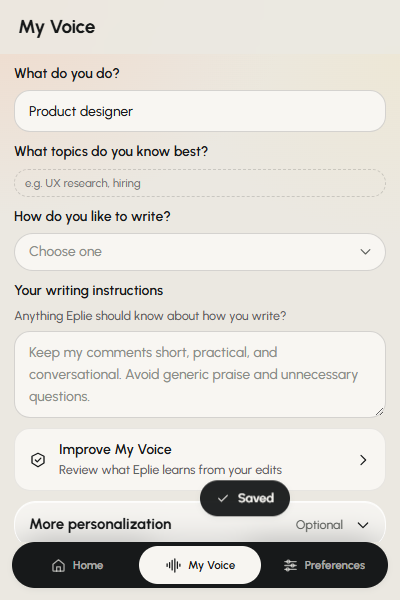
Your My Voice settings help guide the draft, including your role, areas of expertise and preferred writing style. You get a starting point that you can read, change, or replace.
The comment still needs your judgment. Eplie helps with the writing.
How it works
From reading a post to writing a comment
- 1
Find a post you want to respond to
Browse LinkedIn as you normally would. There's no separate workspace to open.
- 2
Click the Eplie button
You'll find it in the post's action area, alongside LinkedIn's usual controls.
- 3
Eplie prepares your comment
It uses the selected post and your writing preferences to draft a response in the comment box.
- 4
Make it yours
Change anything you disagree with, add your experience, or use Refine to improve the wording.
- 5
Publish when you're ready
You click LinkedIn's Comment button yourself. Eplie doesn't publish on your behalf.
What goes into the comment
Three things shape every draft
The post you're responding to
A useful comment should address something the author actually said. If the post is about customer retention, a comment about website traffic may miss the point. Eplie uses the selected post's text to keep the draft relevant.
Your professional background
Two people can read the same post and have very different things to contribute. A recruiter notices hiring, a founder remembers running a small team. My Voice guides that perspective.
Your writing preferences
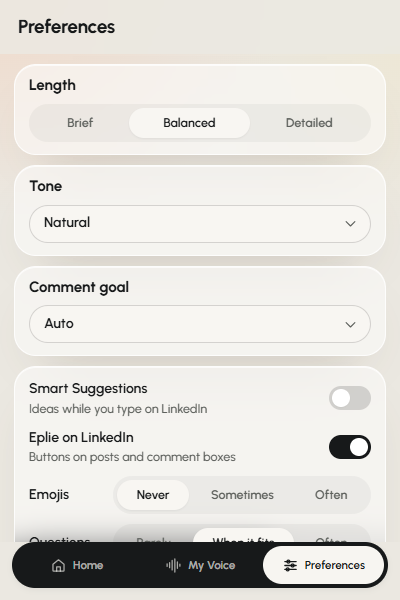
Prefer short replies? Set the length to Brief. Want to share an experience or ask a question? Choose the goal. Dislike emojis? Turn them off. You don't repeat the same instructions for every post.
Comment example
What does a useful LinkedIn comment look like?
Imagine someone posts about website traffic. A generic response could fit under hundreds of posts. A useful one, from someone with marketing experience, gives the author something to respond to.

Getting more website visitors doesn't always mean your business is growing. You need to understand what those visitors do after arriving.
I've seen this with SaaS sites. Traffic can keep growing while signups barely move. Looking at which pages bring in qualified visitors usually tells you more than the total traffic number.
The people and the comments are made up for this example. Eplie's drafts vary with the post and your settings.
When it helps
When is this feature useful?
When you don't know how to start
You have an opinion but can't phrase the opening. Get a draft you can work from.
Outside your usual routine
Replying to a founder, a customer, or someone in another part of your industry? Set the tone and review the draft before posting.
When you want a short response
Not every post needs a paragraph. Choose Brief and keep the response focused.
When you've already written something
You don't have to start from an empty box. Click Eplie and choose Polish or Rewrite to work from your own words.
Time
Fewer steps between reading and replying
With a separate AI chat, you may need to collect the post, explain your requirements, copy the result, and return to LinkedIn. Eplie removes much of that manual transfer: your draft appears in the place where you're going to publish it.
The time you save depends on the post, your settings, and how much editing you do. We don't promise a fixed number of seconds saved. For regular LinkedIn users, fewer repeated steps can make commenting easier to fit into a normal workday.
Your responsibility
Read before you post
Eplie can help you phrase a response, but it can't decide which opinions you genuinely hold. Before publishing, check that your comment:
- Addresses the right part of the post.
- Reflects something you actually believe.
- Doesn't invent experience you haven't had.
- Doesn't contain unsupported claims.
- Sounds like something you would say.
Sometimes the best response is a simple question. Sometimes you should write it yourself. And sometimes a post doesn't need your comment at all.
Keep exploring
Related features
Your next comment doesn't have to start from scratch
Find a post worth responding to. Click Eplie. Make the draft your own.
Great insights! Absolutely agree with this perspective. Thanks for sharing.