
Smart Suggestions
Start writing. Get help when you're stuck.
You don't need AI to write every comment for you.
With Smart Suggestions, you write in your own words while Eplie offers a possible continuation based on the LinkedIn post and what you've already typed. Accept it when it fits. Ignore it when it doesn't.
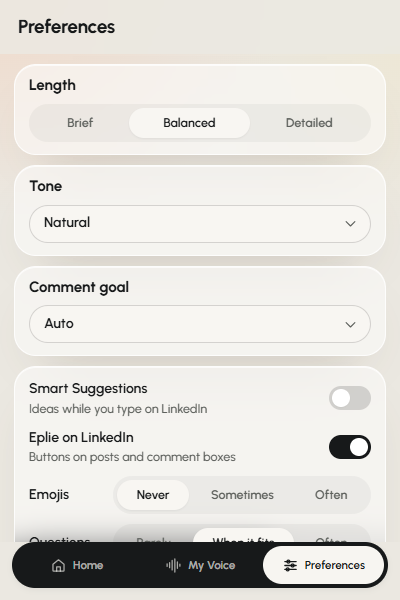
Off until you switch it on.


The problem
You know what you want to say. Then you get stuck halfway.
You're reading a post about a subject you understand. The first sentence of your comment comes easily. Then you stop.
There's another point you want to add, but you can't find the words. Maybe the sentence is too long, or you're trying to disagree without sounding argumentative, or you need a better way to connect two thoughts.
Opening another AI tool for one sentence feels like overkill. You just want a little help finishing what you started.
What it does
Writing help inside the comment box
Smart Suggestions works while you type. When it's on and you pause, Eplie looks at the post and your draft and offers the next few words in grey, right where you're writing.
If they match what you meant, press Tab to keep them. If not, keep typing, or press Esc, and they disappear. The tool doesn't decide what your opinion should be. It offers words you may choose to use.
A simple example
From an unfinished thought to a complete comment
Imagine you're responding to a post about customer retention. You've started writing, and you're thinking about what happens after a customer signs up.
What you've typedOne thing I've noticed is that companies spend so much time getting new customers…
Made-up example of how it works, not a captured Eplie suggestion. You're responsible for the final wording.
How to use it
Write normally. Keep the suggestions you like.
- 1
Switch it on
Open the Eplie extension, go to Preferences and turn on Smart Suggestions.
- 2
Find a post
Open a post you want to comment on.
- 3
Start typing
Write the way you normally would. No special prompt.
- 4
Review the suggestion
When you pause, a few words may appear in grey, based on your draft and the post.
- 5
Accept or ignore it
Press Tab to keep it, or keep typing to write your own.
Turn Smart Suggestions off whenever you like, or pause it for one comment box.
Why the post helps
A sentence should fit the conversation
Ordinary text prediction only looks at the words just before the cursor. But a LinkedIn comment depends on what the author actually said.
Under a post about hiring, you type “I've noticed the same issue…”. Without the post, a continuation could go anywhere. With it, Eplie can suggest wording about the hiring issue being discussed.
It doesn't guarantee a perfect continuation, but it gives the suggestion more relevant information to work with.
Your writing comes first
Pick the help that fits the moment
Smart Suggestions
For the writing in between: a few words at a time, while you write your own comment.
AI Comment Generator
When you want a complete draft. See the generator.
Refine
When the comment is written and needs editing. See Refine.
Where it helps
Small moments where a few words help
Finishing a sentence
You've started a thought but aren't sure how to end it.
Explaining an example
You want to connect your experience to the topic.
Making a transition
Two related points that don't flow together yet.
Answering a question
You're replying to someone and need help phrasing it.
Writing a longer comment
The first paragraph is fine. You need help continuing without repeating yourself.
Staying in control
Nothing is added unless you press Tab.
Keep writing in your own words
Get help finishing a thought without handing over the whole comment.
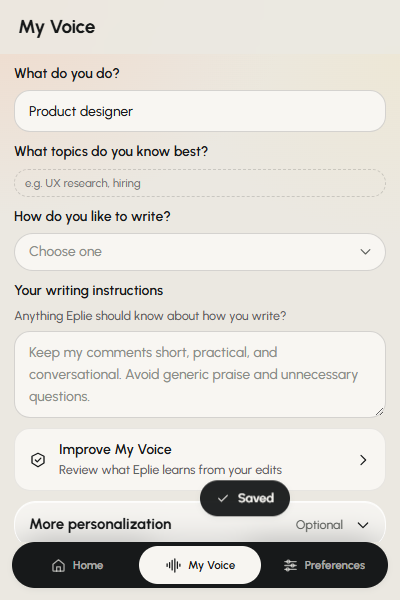
…but don't spend enough time understanding why those customers leave.